
 Documentation-based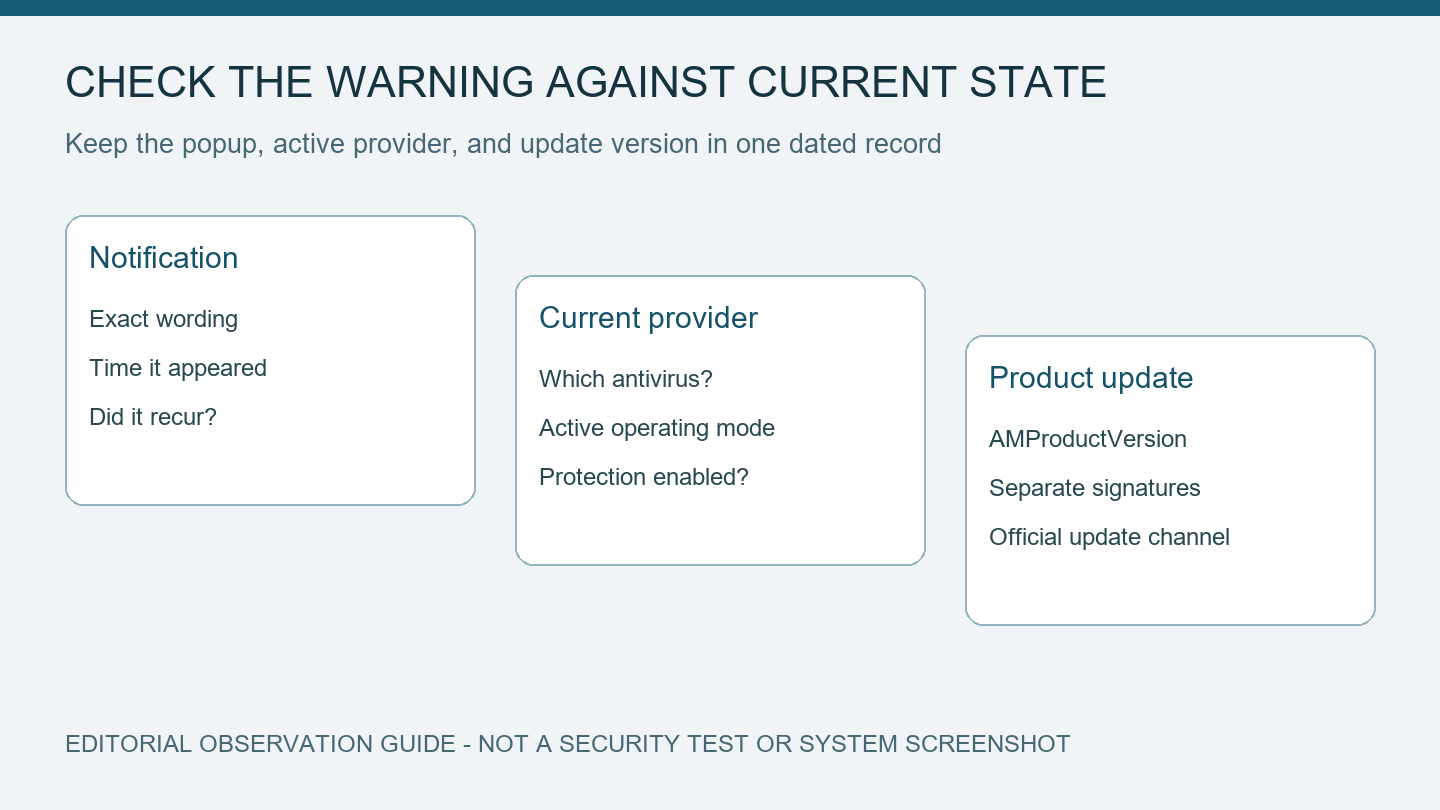
Microsoft release health, Defender overview, Get-MpComputerStatus reference, and product-update documentation reviewed October 5, 2026 with AI assistance. No protection test or warning reproduction was performed. Alex Reed is an established pen name.
When a notification says Microsoft Defender Antivirus is turned off, open Windows Security and check the active antivirus provider before dismissing it. Microsoft documented a false notification problem that could appear even while Defender was working, and lists a fix in Defender update 4.18.26080.4. A similar-looking warning can also describe genuinely disabled protection or another antivirus taking over.
This guide uses Microsoft's documentation to compare the warning, provider, operating mode, and update version. We reviewed the sources on October 5, 2026. We did not reproduce the notification, test malware detection, or verify the protection state of your PC. The illustration is a comparison aid, not a screenshot of a protected system.
Start with the provider, then read the status
Microsoft's Defender overview describes checking Windows Security's Virus & threat protection page and its Manage Providers view. Write down which antivirus is registered and whether that provider reports protection active. A Defender warning and a non-Microsoft provider require a different interpretation from a warning on a PC where Defender is the active antivirus.
For another view of Defender's own status, Microsoft's Get-MpComputerStatus reference documents this read-only PowerShell command:
Get-MpComputerStatus | Select-Object AMRunningMode, AMServiceEnabled, AntivirusEnabled, RealTimeProtectionEnabled, AMProductVersion, AntivirusSignatureLastUpdatedThe selected fields keep the comparison manageable. Save the values and the time you read them. This command reads status; it does not turn protection on, perform a scan, or repair a reporting problem. If it returns an error or no useful output, preserve the exact error instead of substituting a sample result from a forum.
Microsoft describes Normal as Defender running in active mode. Other operating modes have different meanings. In a supported Defender for Endpoint configuration, Passive means Defender is running but is not the primary antivirus. Do not change a work PC's managed configuration simply to make its output resemble a home-PC example.
Decide whether the observations agree
Use the following branches with the status you actually obtained. No values in this guide are observations from your device.
- If Defender is the active provider, its operating mode is
Normal, and the service, antivirus, and real-time protection fields report enabled, the notification conflicts with those observations. Check the documented false-notification issue and update version next. These values describe reported state, not proof that the device is free of threats. - If Windows Security names another active antivirus, check that product's status and support guidance. A Defender field alone cannot describe the other product's protection.
- If Defender should be the active provider but protection is off, missing, or the views remain inconsistent, investigate that condition. A known reporting bug is not a reason to ignore an ongoing protection failure.
- If your organization manages the PC or the interface says settings are managed, send the observations to IT. Include the mode and active provider, not a request to override security policy.
Keep the notification timestamp with the observations. A popup seen at startup and a status check much later describe different moments. If the warning returns, record the new occurrence and compare current state again. An isolated old notification should not be silently treated as a live status check.
Check the Defender product version separately from signatures
The release-health entry for incorrect notifications says the problem followed Defender version 4.18.26070.9, released August 5. It reports the fix in 4.18.26080.4, released September 17; the entry's resolved status was updated September 30. The faulty notifications could appear at startup or intermittently, including after notification settings were turned off.
Record AMProductVersion from the status command. Keep it separate from AntivirusSignatureLastUpdated: the time of a security-intelligence update does not identify the installed Defender product version. Microsoft's Defender update documentation distinguishes product updates from security-intelligence updates and lists Windows Update among the supported platform-update channels.
On a personal PC, use the normal official update process and check the product version again afterward. On a managed device, ask IT to check its update channel. This page does not prescribe downloading an old fixed version when newer supported updates are available. If you already have a later product version and the problem persists, collect the new observations for support instead of assuming the old incident explains them.
A support note that preserves the uncertainty
A useful note reads like a record, with blank fields you fill yourself:
Notification wording and time:
Active antivirus provider and reported state:
AMRunningMode:
AMServiceEnabled / AntivirusEnabled / RealTimeProtectionEnabled:
AMProductVersion:
Last security-intelligence update:
Did the warning recur after the update?
Any actual protection-history alert:
Send the note through your organization's support process or Microsoft's normal support channel. Redact account information and private paths from attachments. Keep a real threat alert or failed remediation separate from the popup: a reporting problem does not explain away a detection that still needs action.
We do not recommend disabling Defender, changing registry policy, removing another antivirus, or turning off tamper protection to clear this message. The immediate task is to establish which product protects the PC and whether its state is consistent. For other Windows diagnostic topics, use the troubleshooting index.
Our public-page checks are due October 6 and October 12. Review this guidance sooner if Microsoft changes the incident or product-update documentation.
