
 Documentation-based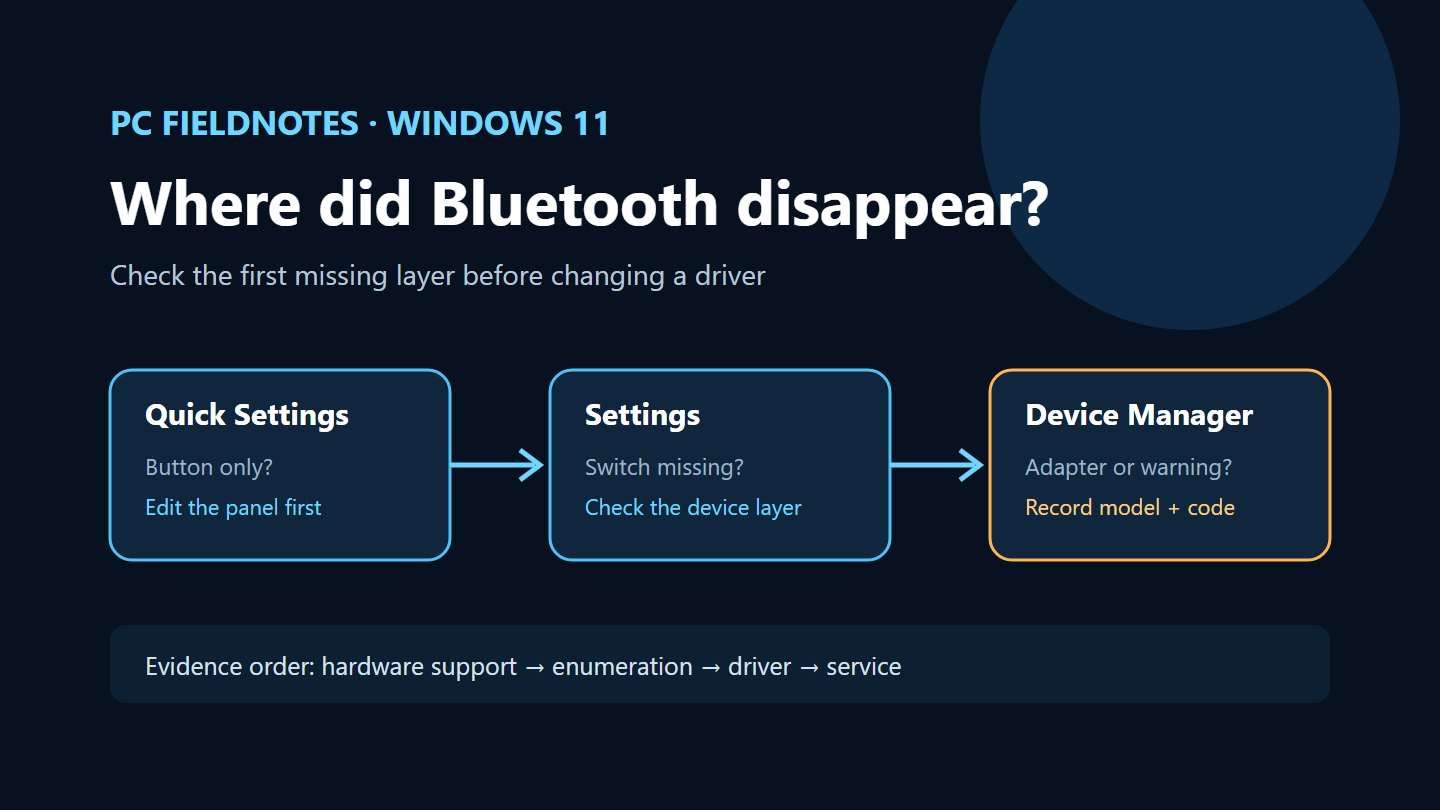
Microsoft Bluetooth support and Device Manager documentation reviewed October 8, 2026 with AI assistance. No physical Bluetooth adapter was tested. Alex Reed is an established pen name.
If Bluetooth is missing in Windows 11, first determine what is actually absent: the Quick Settings button, the on/off switch in Settings, or the Bluetooth adapter in Device Manager. A missing shortcut can be an interface problem. A missing adapter means Windows is not currently presenting usable Bluetooth hardware, so repeatedly pairing the accessory will not help.
This guide follows Microsoft’s current troubleshooting and driver documentation. We reviewed the sources on October 8, 2026. We did not reproduce the failure on a physical Bluetooth adapter, so the steps below are a diagnostic order rather than a promised fix.
Confirm that the PC is supposed to have Bluetooth
Microsoft’s Bluetooth troubleshooting guide starts with compatibility. Check the specifications for the exact laptop or motherboard model. A Wi-Fi connection does not by itself prove that the machine includes Bluetooth, especially on a desktop with a replaceable wireless card.
Also check for a physical wireless switch or function-key mode documented by the PC maker. Turn off Airplane mode in Settings > Network & internet > Airplane mode. These checks establish whether Windows should be able to expose a Bluetooth radio; they do not prove that its driver is healthy.
If Bluetooth exists in Settings but only the taskbar control is missing, use Windows key + A, select the edit control if available, and add Bluetooth to Quick Settings. Stop there if the adapter and Settings switch work. Reinstalling a driver for a missing shortcut adds risk without addressing the observed layer.
Check what Device Manager can see
Open Device Manager and inspect three places before changing anything:
- Look for a Bluetooth category and expand it.
- Use View > Show hidden devices, then check Bluetooth again.
- Look under Other devices and Universal Serial Bus controllers for an unknown device or a device with a warning symbol.
Record the device name and any status code shown in Properties > General. Microsoft’s Device Manager error-code reference explains that codes describe the device state Windows reports; a code is more useful than guessing that the radio is dead.
The observations lead to different next steps:
- Bluetooth category present, adapter enabled: return to Microsoft’s Bluetooth troubleshooter and the Settings path. The hardware is visible, so the missing control may be above the device layer.
- Adapter present with a warning code: preserve the code and current driver details. Follow the code-specific Microsoft guidance before removing anything.
- Unknown device present: identify the exact PC model and obtain its chipset and Bluetooth packages from the PC maker. Do not select a driver merely because its brand name resembles the wireless card.
- No Bluetooth or unknown device at all: use Action > Scan for hardware changes, restart once, and compare again. If it remains absent, firmware settings, an internal USB connection, a removable card, or hardware may need model-specific support.
Showing hidden devices can reveal a previously installed, non-present device. It does not prove that the Bluetooth radio is physically connected now. A gray entry should be recorded as history, not counted as a working adapter.
Use the supported troubleshooter and driver path
On Windows 11, Microsoft directs users to the Bluetooth troubleshooter in the Get Help app. Run it and keep the result wording. If it reports that Bluetooth is unavailable, that result belongs with the Device Manager observation and PC model in a support note.
For a visible adapter, record Driver Provider, Driver Date, and Driver Version before making a change. Microsoft’s driver update guide documents Windows Update and Device Manager paths. For laptops and prebuilt PCs, prefer the manufacturer’s package for the exact model when it provides one, because Bluetooth may share a module and platform dependencies with Wi-Fi.
If the problem began immediately after a driver update and Device Manager offers Roll Back Driver, record both versions before using it. If rollback is unavailable, do not download an arbitrary archive from a third-party driver site. Keep a known-good installer from the PC maker before uninstalling the current device.
Check the Bluetooth service only when hardware is visible
Open Services and find Bluetooth Support Service. Record whether it is running and its configured startup behavior. Starting a stopped service can be a useful comparison when Device Manager already shows Bluetooth. A service change cannot make unsupported or physically absent hardware appear.
Avoid changing unrelated services, deleting registry keys, or installing generic “driver updater” utilities. Those actions make the before-and-after record harder to interpret and can add a second problem.
Build a support note that separates the layers
Use a short record like this:
PC or motherboard model:
Windows edition, version, and build:
Bluetooth listed in the product specifications: yes / no / unknown
Quick Settings button: present / missing
Settings Bluetooth switch: present / missing
Device Manager Bluetooth category: present / missing
Unknown or warning device and status code:
Driver provider, version, and date:
Get Help troubleshooter result:
What changed just before the problem:
Send that record to the PC maker or Microsoft support after removing serial numbers and account details. It makes clear whether the failure is an interface control, a driver-loaded device, or hardware that Windows cannot enumerate.
The goal is not to run every possible fix. It is to locate the first layer where Bluetooth disappears, preserve the evidence, and change one thing at a time. For other Windows checks that rely on recorded state rather than guesswork, use the diagnostics index.
Recheck this page if Microsoft changes the Windows 11 Bluetooth troubleshooter or driver guidance. Public-page checks are scheduled for October 9 and October 15, 2026.
